Thumbnav
Create a flexible thumbnail navigation.
Usage
To create a navigation with thumbnails, use the following classes. This component is built with Flexbox. So to align a thumbnav, you can use Flex component or utility classes from Tailwind CSS.
| Class | Description |
|---|---|
.uk-thumbnav | Add this class to a <ul> element to define the Thumbnav component. Nest your thumbnail images inside <a> elements within the list. |
.uk-active | Add this class to a list item to apply an active state. |
<ul class="uk-thumbnav">
  <li class="uk-active">
    <a href=""><img src="" width="" height="" alt="" /></a>
  </li>
  <li>
    <a href=""><img src="" alt="" /></a>
  </li>
</ul>
-
-
-
<ul class="uk-thumbnav">
  <li class="uk-active">
    <a href="#"
      ><img src="/images/photo.jpg" width="100" height="67" alt=""
    /></a>
  </li>
  <li>
    <a href="#"
      ><img src="/images/dark.jpg" width="100" height="67" alt=""
    /></a>
  </li>
  <li>
    <a href="#"
      ><img src="/images/light.jpg" width="100" height="67" alt=""
    /></a>
  </li>
</ul>
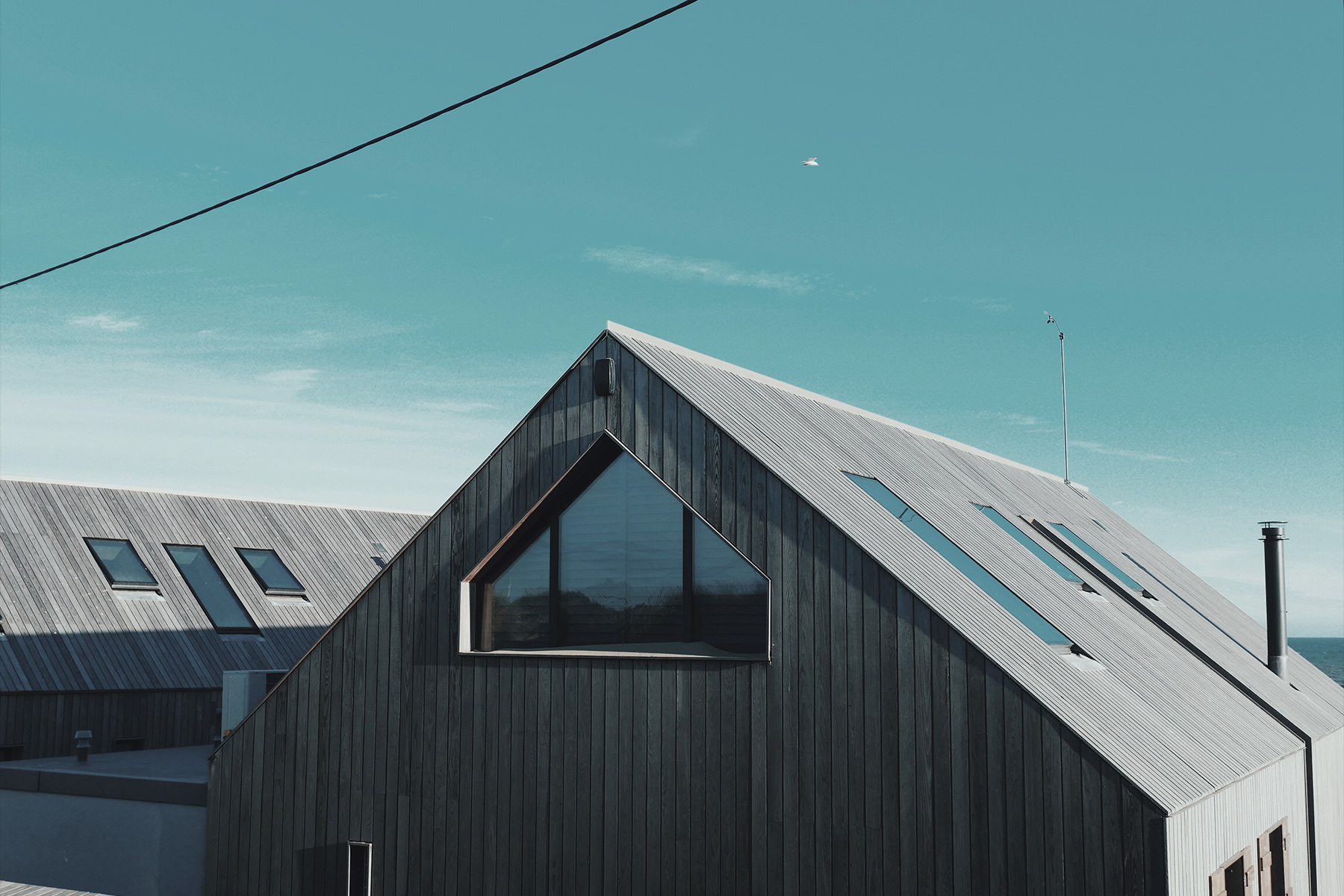

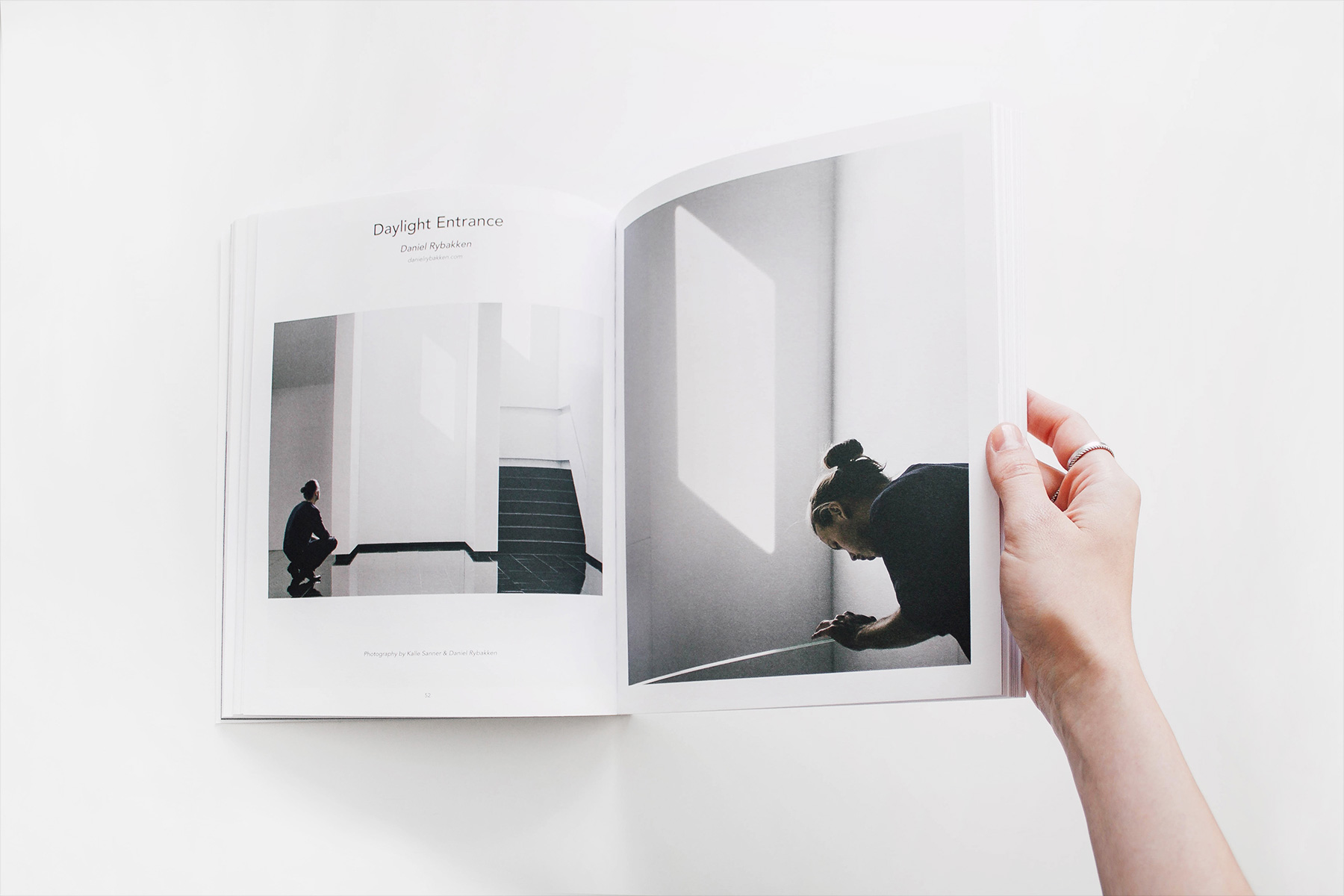
Vertical alignment
The thumbnav can also be displayed vertically. Just add the .uk-thumbnav-vertical modifier.
<ul class="uk-thumbnav uk-thumbnav-vertical">
  ...
</ul>
-
-
-
<ul class="uk-thumbnav uk-thumbnav-vertical">
  <li class="uk-active">
    <a href="#"
      ><img src="/images/photo.jpg" width="100" height="67" alt=""
    /></a>
  </li>
  <li>
    <a href="#"
      ><img src="/images/dark.jpg" width="100" height="67" alt=""
    /></a>
  </li>
  <li>
    <a href="#"
      ><img src="/images/light.jpg" width="100" height="67" alt=""
    /></a>
  </li>
</ul>
Position as overlay
To position the thumbnav on top of an element or the Slideshow component for example, add one of the .uk-position-* classes from the Position component to a div element wrapping the thumbnav. To create a position context on the container, add the .uk-position-relative class.
<div class="uk-position-relative">
  <!-- The element which is wrapped goes here -->

  <div class="uk-position-bottom-center uk-position-small">
    <ul class="uk-thumbnav">
      ...
    </ul>
  </div>
</div>
-
-
-
<div class="uk-position-relative" uk-slideshow="animation: fade">
  <ul class="uk-slideshow-items">
    <li>
      <img src="/images/photo.jpg" alt="" uk-cover />
    </li>
    <li>
      <img src="/images/dark.jpg" alt="" uk-cover />
    </li>
    <li>
      <img src="/images/light.jpg" alt="" uk-cover />
    </li>
  </ul>

  <div class="uk-position-bottom-center uk-position-small">
    <ul class="uk-thumbnav">
      <li uk-slideshow-item="0">
        <a href="#"
          ><img src="/images/photo.jpg" width="100" height="67" alt=""
        /></a>
      </li>
      <li uk-slideshow-item="1">
        <a href="#"
          ><img src="/images/dark.jpg" width="100" height="67" alt=""
        /></a>
      </li>
      <li uk-slideshow-item="2">
        <a href="#"
          ><img src="/images/light.jpg" width="100" height="67" alt=""
        /></a>
      </li>
    </ul>
  </div>
</div>
Theme development
On your tailwind.config.js file, add the
Thumbnav component within the ui() plugin.
import ui from "franken-ui";

ui({
    components: {
        thumbnav: {
            hooks: {}
        }
    }
}),
Available hooks
Note If you are developing theme from scratch, you can use all these hooks. If you’re using the shadcn/ui theme, some hooks might not work as they were already in use or removed. Learn more about using hooks.
| Hook Name | Affected Classes |
|---|---|
hook-thumbnav | .uk-thumbnav |
hook-item | .uk-thumbnav > * > * |
hook-item-hover | .uk-thumbnav > * > :hover |
hook-item-active | .uk-thumbnav > .uk-active > * |
hook-misc | * |