Marker
Create a marker icon that can be displayed on top of images.
Usage
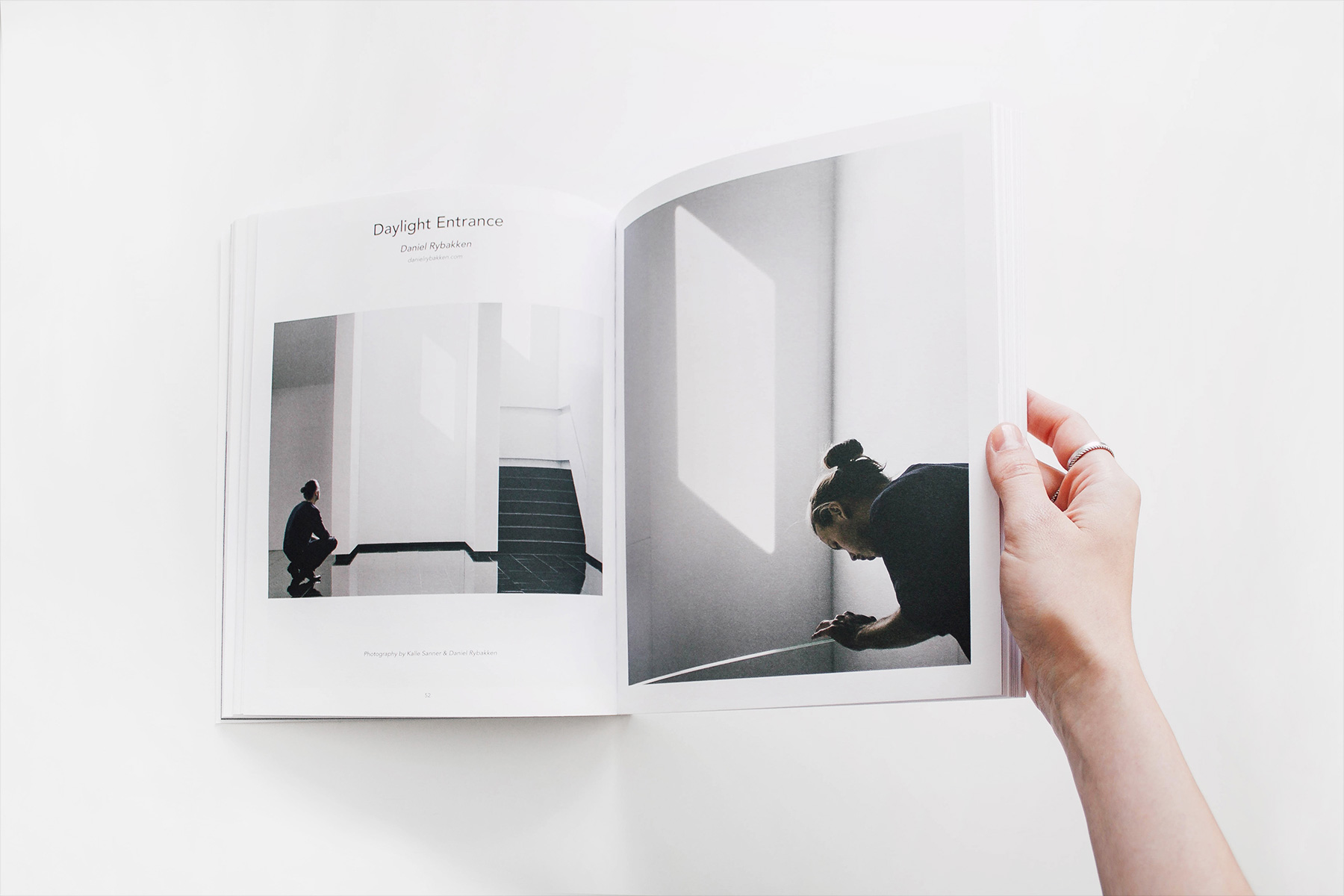
To apply this component, add the uk-marker attribute to any element. You can use the Position component to place the marker on top of an image. Also add the .uk-transform-center classes from the Utility component to center the marker itself to its upper left corner.
<a href="" uk-marker></a>
Copy to clipboard
-
<div class="uk-child-width-1-2" uk-grid>
  <div>
    <div class="uk-inline">
      <img src="/images/light.jpg" width="1800" height="1200" alt="" />
      <a
        class="uk-position-absolute uk-transform-center"
        style="left: 20%; top: 30%"
        href="#"
        uk-marker
      ></a>
      <a
        class="uk-position-absolute uk-transform-center"
        style="left: 60%; top: 40%"
        href="#"
        uk-marker
      ></a>
      <a
        class="uk-position-absolute uk-transform-center"
        style="left: 80%; top: 70%"
        href="#"
        uk-marker
      ></a>
    </div>
  </div>
  <div>
    <div class="uk-inline">
      <img src="/images/dark.jpg" width="1800" height="1200" alt="" />
      <a
        class="uk-position-absolute uk-transform-center"
        style="left: 20%; top: 30%"
        href="#"
        uk-marker
      ></a>
      <a
        class="uk-position-absolute uk-transform-center"
        style="left: 60%; top: 40%"
        href="#"
        uk-marker
      ></a>
      <a
        class="uk-position-absolute uk-transform-center"
        style="left: 80%; top: 70%"
        href="#"
        uk-marker
      ></a>
    </div>
  </div>
</div>

Accessibility
The Marker component automatically sets the appropriate WAI-ARIA roles, states and properties.
- The marker has the
aria-labelproperty, and if an<a>element is used, thebuttonrole.
Internationalization
The Marker component uses the following translation strings. Learn more about translating components.
| Key | Default | Description |
|---|---|---|
label | Open | aria-label attribute. |
Theme development
On your tailwind.config.js file, add the
Margin component within the ui() plugin.
import ui from "franken-ui";

ui({
    components: {
        marker: {
            hooks: {}
        }
    }
}),